Image Solver Guide
How to Solve a Word Search from an Image
Upload your word search puzzle
Take a photo or choose a puzzle image, then continue in the Word Search Solver with the image ready to review.
Opens the free Word Search Solver. No signup required.
Use a clear word search photo or screenshot, review the editable OCR grid, fix mistakes, and open the solver to highlight hidden words.
Photo or screenshot Editable scan All 8 directions No signup
Quick Answer
If you have a clear word search photo or screenshot, open the Word Search Solver, upload or paste the image, review the extracted grid and word list, fix OCR mistakes, and generate the highlighted answer key. Treat image scan as a first draft: the answer key is only reliable after you approve the editable text. For phone-specific workflow notes, see the online camera solver guide, or use the word search scanner guide when the image needs more cleanup.
Open the Word Search SolverWhy a Word Search from Image Can Fail
The conclusion is simple: solve a word search from image only after the scanned text matches the visible puzzle. The image scan is a shortcut, not a final answer.
Problem
A word search from image can look readable to you but still scan wrong because the grid is tilted, cropped, shadowed, or mixed with worksheet instructions.
Why it happens
OCR has to convert a picture into rows of exact letters. If one row shifts, or one I becomes an L, the word search solver receives a different puzzle.
How to fix it
Use a clearer screenshot or straighter photo, keep the full word search grid visible, include the word list, then review the editable rows before solving.
How to know it is usable
The scan is usable when every row has the same length, the target word list is complete, and at least two highlighted answers trace correctly in the original image.
This is why the best word search from image workflow has two separate checks. First, check the word search text extraction: rows, columns, and word list. Second, check the answer key: highlighted paths, direction, and letters in the original image. If either check fails, fix the word search input before trusting the result.
Actual Image Examples
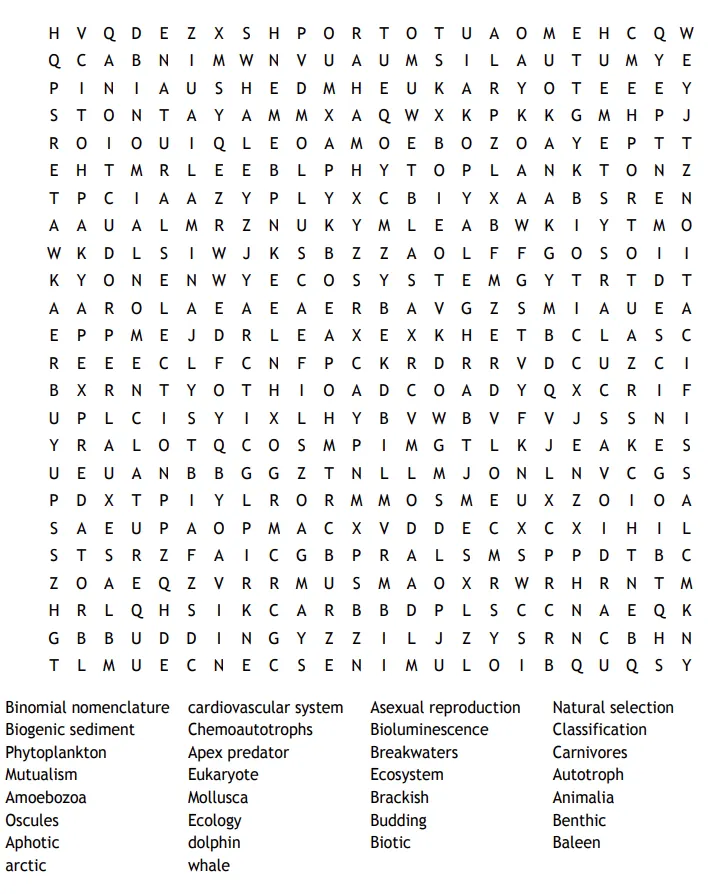
Clear screenshot
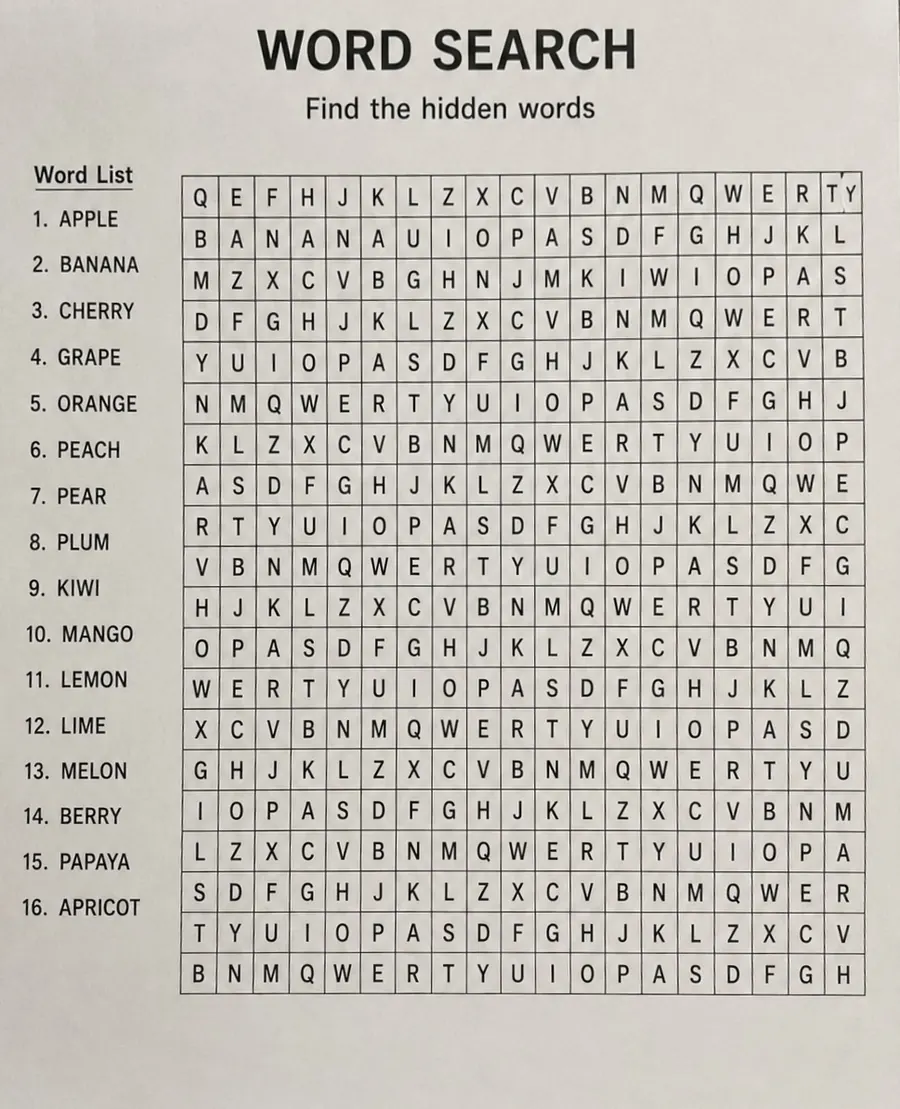
Flat, high-contrast screenshots usually scan fastest. The grid is square, every letter is readable, and the word list is included in the same image.
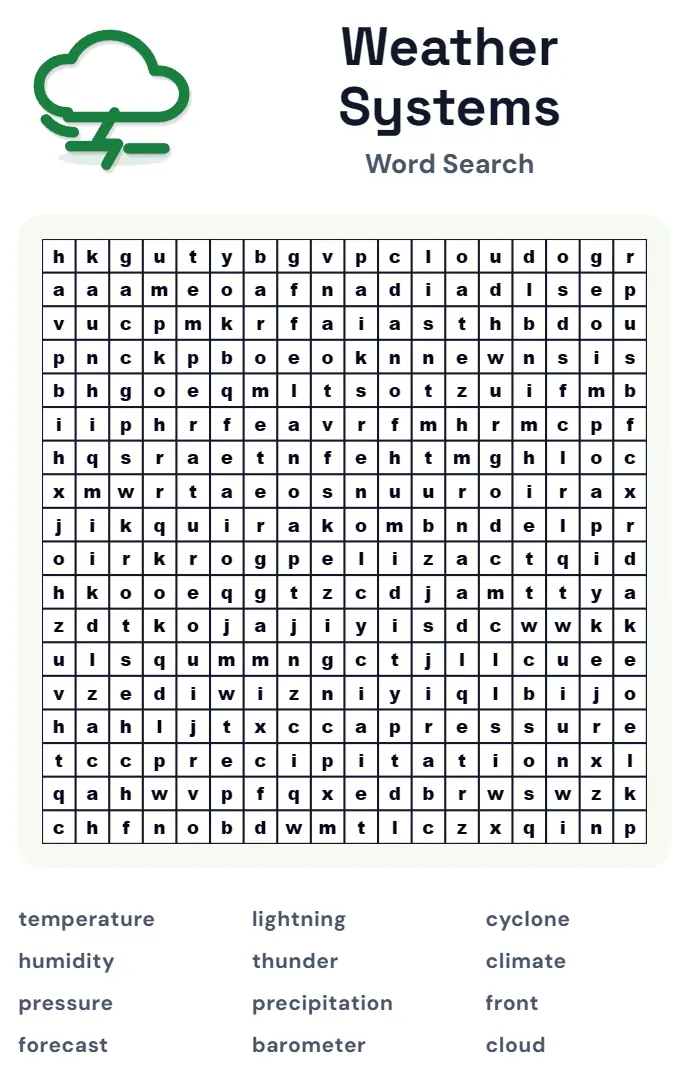
Lowercase printable
Lowercase grids can work when letters are crisp and evenly spaced. Review the editable grid carefully because shapes like l, i, t, and f are easy to confuse.
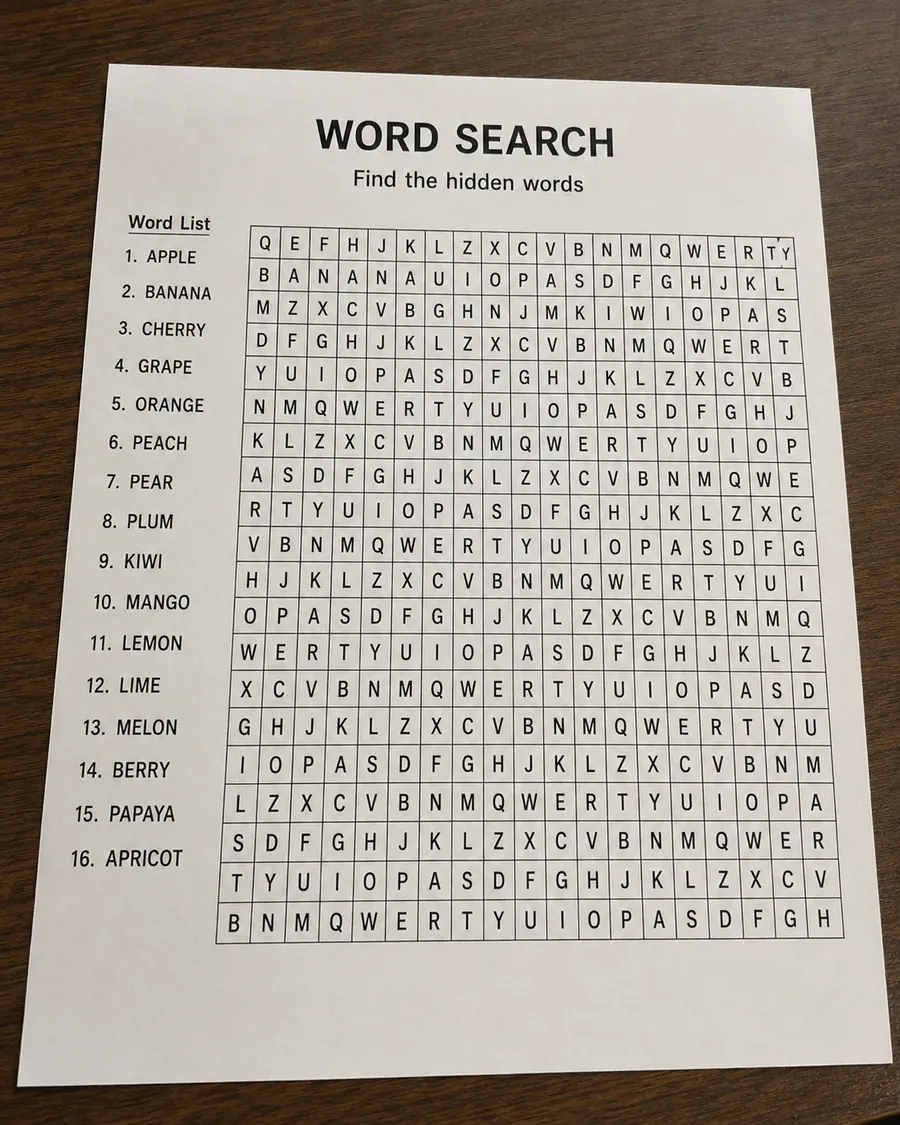
Angled camera photo
A phone photo can work, but perspective makes row and column detection harder. Use the pencil editor if the page corners slant or the grid cells look stretched.
How to Use the Pencil Editor
Use the pencil editor when a phone photo is readable but tilted. The goal is not to crop tightly around the grid; it is to make the whole worksheet flatter while keeping the word list visible.
1. Start with the camera photo
The worksheet is readable, but the page is angled. The solver can try it, yet grid detection has to work harder.
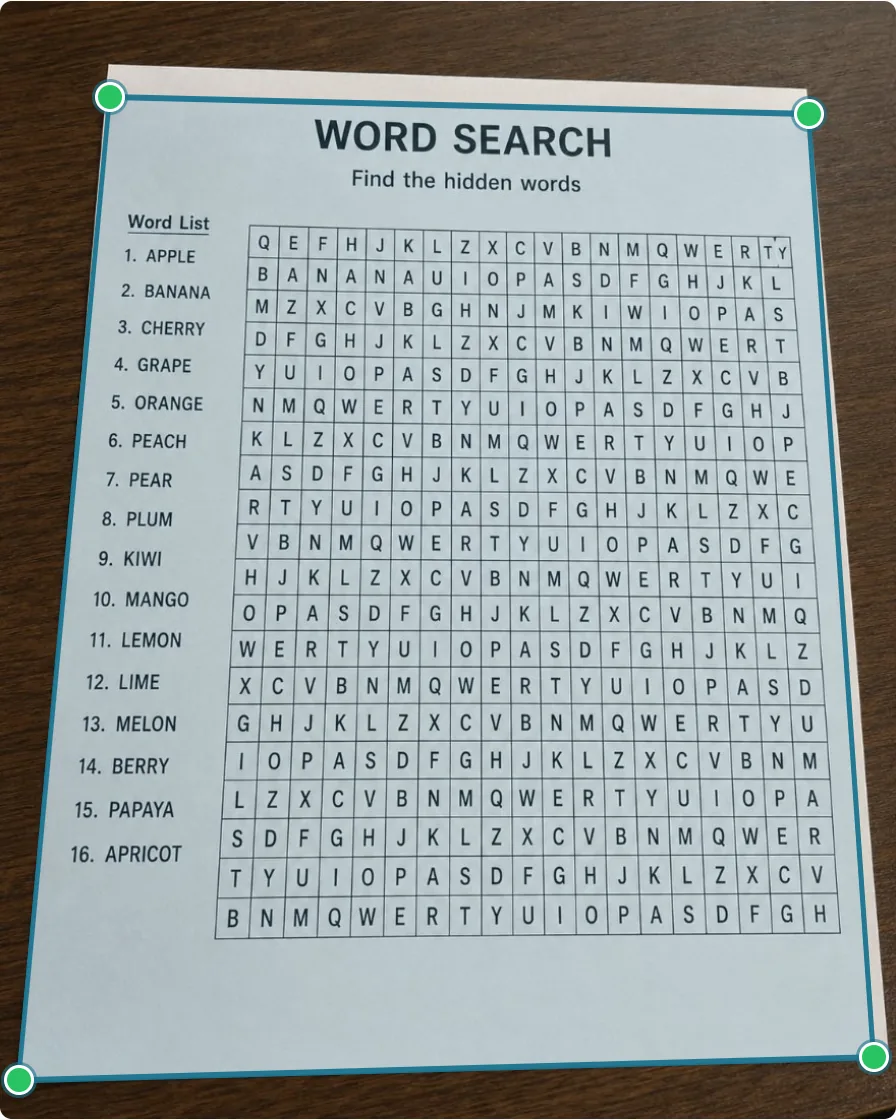
2. Put corners on the paper
Drag the green handles to the four paper corners. Keep the word list and letter grid inside the outline.
3. Save the fixed image
The saved image is flatter and easier to scan. The word list stays visible for OCR or manual review.
If your preview looks like step 1, tap the pencil before scanning. Put the green corners on the paper corners as in step 2, save the fix, then scan the corrected image from step 3.
1. Open the pencil editor
After uploading an image, tap the pencil on the preview when the photo is tilted, the paper is cut off, or the grid rows look slanted. You do not need the editor for a clean screenshot.
2. Put the green corners on the page corners
For most camera photos, leave Fix photo in its default mode and drag the four green handles to the four paper corners. Keep both the letter grid and the word list inside the outline.
3. Save the fixed image, then scan
Click Save Fix, check that the preview looks flatter, then run Scan Image. This gives grid detection a straighter page and gives word-list OCR a clearer crop.
4. Use Mark grid only when needed
If the page has extra graphics, columns, or instructions that confuse detection, open More adjustments and use Mark grid only. Put the corners around the letter grid, then type or review the word list manually if it is outside the selected area.
Best recognition settings
- Keep letters upright. Use Rotate 90 only when the image is sideways.
- Do not crop off the word list unless you plan to type the words manually.
- For a full worksheet photo, outline the paper corners, not just the letter grid.
- For a busy worksheet, use Mark grid only around the letter grid, then review or type the word list.
- After scanning, check the first row, last row, and similar letters such as I/L, O/Q, S/5, and B/8.
What Makes a Good Puzzle Image?
A good image shows the entire letter grid clearly. A great image also includes the word list, because the solver needs both the grid and the target words.
A screenshot is usually easier to read than an angled camera photo. If you use a phone camera, keep the worksheet flat, fill the frame with the puzzle, and avoid glare or shadows. Crop out unrelated text so the scan focuses on the puzzle.
For a word search from image, the best input is not the prettiest photo. It is the image that gives the scanner the most exact letters. A plain screenshot with a visible word search grid and word list is usually better than a dramatic photo taken from the side.
Common Scan Problems and How to Fix Them
Image scans can fail or produce messy text when the puzzle is blurry, tilted, cropped, handwritten, or printed in a decorative font. If OCR keeps failing, try the worked solver example, read the AI word search solver guide, or type the puzzle manually.
When Manual Editing Is Faster
Manual editing is often faster than repeated uploads when only a few letters are wrong. Check the corners of the grid, the longest words, and any letters that look similar in the photo, such as I/L, O/Q, B/8, or S/5.
If many rows are wrong, start with a clearer image or type the grid manually.
How to Check the Answer Key
- ✓ Does the grid size match?
- ✓ Are all expected words in the word list?
- ✓ Do highlighted paths use the correct letters?
- ✓ Are diagonal and backward words allowed for this puzzle?
- ✓ Are missing words caused by a scan mistake?
A checked answer key is more useful than a fast answer key you cannot trust.
Privacy Tips Before Uploading Classroom Worksheets
Before uploading a classroom worksheet, crop out personal information. Avoid uploading student names, school IDs, email addresses, grades, teacher comments, or private classroom records.
If the worksheet includes sensitive details around the puzzle, crop the image to the grid and word list or type the puzzle manually. Read the Privacy policy for more detail.
Solving from image FAQ
Can I upload a screenshot?
Yes. Clear screenshots often work better than angled photos because the grid is already flat and high contrast.
Is a phone camera photo good enough?
Often, yes, if the worksheet is flat, well lit, and fully visible. A tilted, blurry, or shadowed photo usually needs more editing before the answer key is useful.
What if OCR reads the wrong letters?
Review the editable grid and word list before solving. Fix wrong letters, missing words, or extra worksheet text, then run the solver again.
When should I use the pencil editor?
Use it when a photo is tilted, the page corners slant, or OCR cannot find a clean grid. Put the green corners on the paper corners for full-page photos; use Mark grid only when extra worksheet content confuses detection.
Does it support handwriting?
Handwriting is not reliable. The solver works best with clear printed letters from a screenshot or well-lit photo.
Should the word list be in the same image?
Yes, if possible. If the word list is separate or cropped out, you can type the words manually before solving.
Is this guide a separate solver?
No. This guide explains how to prepare the image and check the result. Use the Word Search Solver page to upload the puzzle and find the hidden words.
What is the easiest way to solve a word search from image?
Use a clear screenshot when possible. Upload it, review the editable word search grid and word list, fix OCR mistakes, then run the solver after the text matches the image.
Is an AI word search solver better for images?
AI can help read an image, but the reliable step is still checking the extracted grid and using exact word search solving. Do not trust an image answer key until you verify the letters.
Ready to solve your image?
Open the Solver, upload a clear image, check the editable result, and run Find Words when the grid and word list look correct. Need a new puzzle instead? You can also make your own printable word search.